Six pixels of travel
I have a shortcut for everything and I use almost none of them. That’s the honest starting point. Somewhere in my head is a list of key chords I set up once, felt clever about, and then never built the muscle memory for, so I keep doing the slow thing instead. Dragging the volume slider. Opening the Downloads folder through three clicks in Explorer. Hunting for the snipping tool.
The thing that finally annoyed me enough was clipboard history. Windows has one, Win+V, and it works, except it opens a panel somewhere on screen that steals focus from the text box I was typing in, so I click the entry, then click back into the box, then find my cursor again. Three actions to paste a thing I copied ninety seconds ago. Every time.
What I actually wanted was the thing games figured out years ago: a radial menu. Hold a button, the ring appears at your cursor, flick in a direction, let go. You don’t aim at anything. The wedge you want is a direction, not a location, so after a few days your hand just knows that volume is up-right and it stops being a menu at all. That’s bananapie: Windows, one Python file, one gesture.
What it actually is
Hold Ctrl+Shift+Q (or whatever you rebind it to) and a ring appears under your cursor. Move onto a wedge, release, that action fires. Release in the middle and nothing happens, which matters more than it sounds, because a menu you can’t cancel is a menu you’re scared to open.
Wedges do one of a few things: launch a file, folder or URL, run a shell command, send a key chord, or hit a built-in like volume, lock, screenshot, emoji picker. Wedges marked with three dots are submenus, and you never click those either. Rest on one for about a third of a second while you’re still holding, and it opens under your cursor. Rest in the middle circle to back out. The whole thing, however deep you nest it, stays a single press-and-release.
Two bits I like more than the rest:
- Volume wedges ramp. Sit on one and it keeps firing, so you hold and watch the slider slide instead of clicking eight times. There’s a deliberate delay before it starts, so passing over volume on your way somewhere else doesn’t touch it. A quick in-and-out gives exactly one step.
- Clipboard history that doesn’t take focus. The Clipboard wedge opens a ring of the last 8 things you copied, and picking one lands it straight in the box you were already typing in.
Everything is one config.json. Save it and the ring rebuilds within a second, no restart. Typo the JSON and it keeps running on the last good config and tells you why on stderr, because a config reloader that bricks the app on a missing comma is worse than no reloader.
The clipboard trick
That focus thing is the whole reason my own clipboard ring exists instead of me just calling the Windows one. The Windows history is only reachable through WinRT, and more importantly it’s a real window that takes focus. Mine is a tkinter window created with WS_EX_NOACTIVATE, which is Windows’ way of saying “show this, but never make it the active window.” Your text box never finds out anything happened. The app also stashes whatever window had focus before the ring opened and restores it before pasting, as a belt-and-braces thing.
The history itself is deliberately boring: the app watches the clipboard, keeps the last 8 text entries in memory, and that’s it. Nothing touches disk, and it’s gone when the app closes. I didn’t want to be the guy whose fun little menu quietly wrote everyone’s copied passwords to a file next to the script.
Making tkinter draw a circle that doesn’t look terrible
I built the UI in tkinter because I wanted this to be one file with no installer and no service, and tkinter ships with Python. The problem is that tkinter’s arcs are ugly. Draw a wedge and you get visible stair-stepping on both curved edges, which on a big translucent ring is all you can look at.
There’s no antialiasing flag to turn on. So the fix is the old one: draw everything at four times the size with Pillow, then downsample the whole image back to actual size. The averaging that happens on the way down is the antialiasing. It costs a bit of memory and a few milliseconds on a redraw, and in exchange the wedges have clean edges.
Icons are single characters from Segoe Fluent Icons, the icon font Windows already ships with, so there are no image assets in the repo at all. An icon in the config is just a codepoint like "".
The part that actually ate the time: three threads, and why
Here’s what I thought this project was: draw a circle, read the mouse angle, run a command. Here’s what it actually was: a lesson in Windows message pumps that I did not sign up for.
The trigger is a low-level keyboard hook, WH_KEYBOARD_LL. It watches every keystroke system-wide, swallows the one chord I’ve claimed so it never reaches whatever app you’re in, and passes literally everything else straight through untouched.
My first version put that hook on the same thread as tkinter. It worked for about ten seconds and then took the entire process down, with no traceback, no error, nothing.
Why: tkinter’s mainloop releases the GIL while it’s blocked in the Windows message pump. If a ctypes callback, which is what a keyboard hook is, fires during that window, it runs with no valid Python thread state. That isn’t an exception you can catch. That’s the interpreter walking into a wall.
So the hook gets its own thread with its own message loop, and hands events over to the UI thread through a queue. Fine.
Then I added a tray icon and killed the hook a second time, in a completely different way. TrackPopupMenu, the call that shows a tray context menu, blocks while the menu is open. And a thread that’s blocked can’t service a low-level hook. Windows’ response to a hook that doesn’t respond fast enough isn’t an error either; it just quietly removes your hook. My trigger would silently stop working, and the only symptom was that pressing the shortcut did nothing.
Hence three threads: hook, UI, tray. Not because I wanted a concurrent architecture, but because Windows failed in two different silent ways until I stopped putting things on the same thread. Both of those cost me an evening each, and neither of them produced a single line of error output.
Honest limitations
Same as always, I’d rather write these down than have someone hit them:
- Windows only, and not by accident. The trigger, the focus handling and the paste path are all Win32 calls. There’s no cross-platform version hiding under this.
- Admin windows need admin. A low-level hook can only send input to windows at its own privilege level, so to use the menu over something running as administrator you have to run bananapie as administrator too.
keysactions drop your modifiers. When a wedge fires, the trigger’s own Ctrl and Shift are still physically held down, so the app releases Ctrl, Alt, Shift and Win before sending the chord. If you happened to be holding Shift for your own reasons at that exact moment, it gets dropped. An F13 to F24 trigger sidesteps this entirely, since there are no modifiers to clear.- Anti-cheat may not love it. It’s a global keyboard hook. It only swallows one chord and reads nothing, but that’s not a distinction anti-cheat software is obliged to make, and it’s worth knowing before you run it under a competitive game.
Six to eight wedges
The one design constraint I’d give anyone building something like this: six to eight wedges per ring. I tried twelve. Past about eight they get narrow enough that you have to look at the screen to hit the right one, and the moment you’re looking, you’ve lost the entire point. You may as well have opened a normal menu.
Which is a nice, small version of a thing I keep relearning: the feature isn’t the ring, it’s not having to aim.
One button, about fifty things
Here’s the setup I actually use, and it’s the bit that makes the whole thing click for me. I don’t press Ctrl+Shift+Q on my keyboard. I never have. I opened Razer Synapse, picked a side button on my DeathAdder, set it to Keyboard Function, and recorded the chord. Now that one button is the trigger.
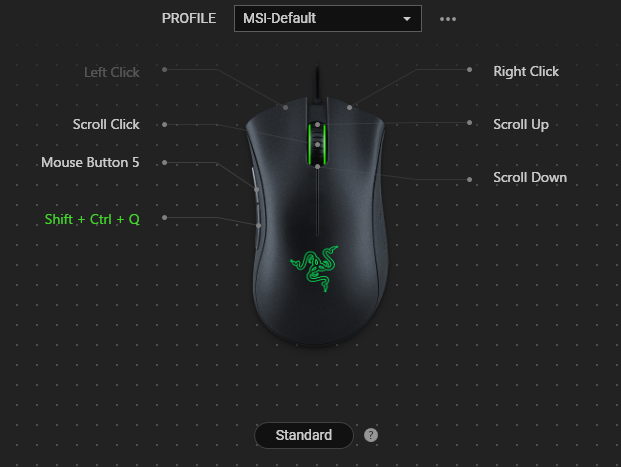
That green Shift + Ctrl + Q on the lower thumb button is the entire integration. bananapie has no idea a mouse is involved. It’s listening for a keyboard chord, Synapse is sending a keyboard chord, and neither one knows about the other. That’s why any mouse software works here.
So my hand never leaves the mouse. I press one button with my thumb, flick, release. That’s the entire interaction, and my keyboard isn’t involved at any point.
The part I find genuinely funny is the maths of it. One physical button now reaches every wedge on the main ring, and every wedge inside every submenu under that, and it does it in whatever fraction of a second it takes to move your thumb a couple of centimetres. Nest two levels with seven or eight wedges a ring and you’re at fifty-odd distinct actions hanging off a single button. Not fifty shortcuts to remember. Fifty directions, and your hand learns directions much faster than it learns key chords, which is the whole reason my old shortcuts went unused.
That’s really the trick, and it’s the reason a radial menu beats a list. A normal menu asks you to read and then aim. This one asks your thumb to move up-and-right. After a week you stop seeing the ring at all, and it’s just a button that does the thing.
Two practical notes if you copy this. Any mouse software that can send a keystroke works, Synapse isn’t special. And if yours can send F13 to F24, use one of those with no modifiers instead: no physical keyboard sends those keys, so nothing you’re using can ever collide with the trigger, and it dodges the dropped-modifier problem in the limitations above entirely.
Right-click stays free for normal right-clicking, which was non-negotiable. I wanted an extra gesture, not a replacement for one I already use.
Code’s on GitHub if you want to point it at your own stuff and see whether the gesture clicks for you the way it did for me.